


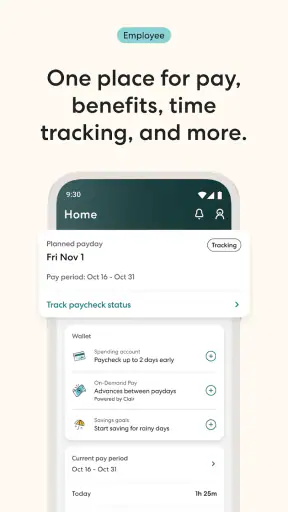
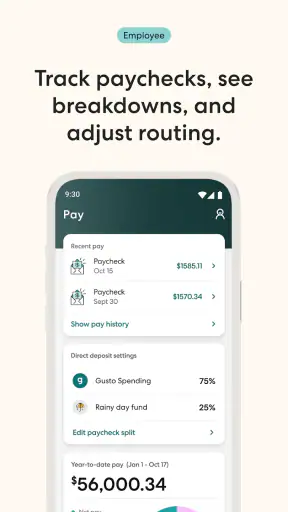
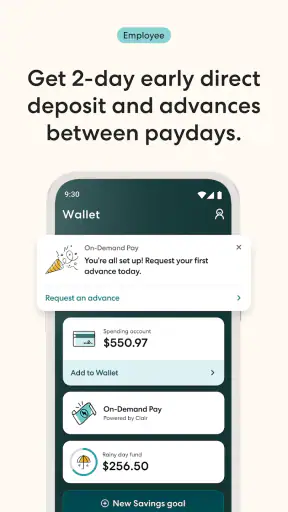
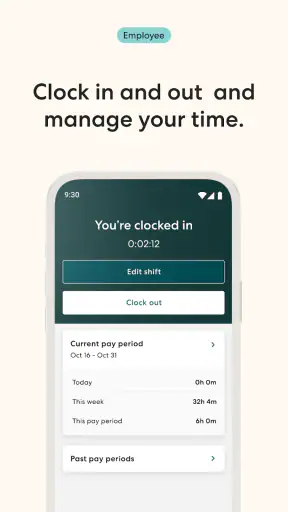
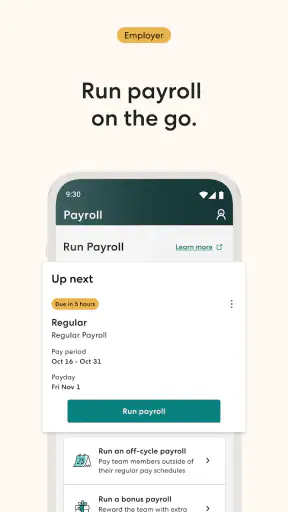
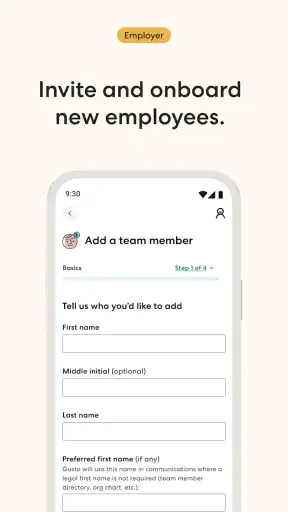
Managing payroll from a phone sounds convenient until a deadline is close, an employee needs an answer, or a login screen refuses to cooperate. I spent time looking at Gusto Mobile from that practical angle: not as a glossy companion app, but as a tool a small-business owner might open between meetings, during a commute, or while checking a payroll task at home. My overall impression is that it is most useful when it supports an existing Gusto workflow rather than trying to replace careful payroll administration.
Developed by Gusto, Inc., this free finance app brings payroll, benefits, and human-resources tools into a mobile setting. It is rated for Everyone, runs on devices using iOS 11 or later, and its current version is 3.78.1. The app has reached over a million installs, with an average rating of 4.6 from around nineteen thousand ratings and roughly two thousand written reviews. Those figures suggest a mature product with a substantial user base, but they do not remove the need to prepare your account and your phone properly before a time-sensitive task.
Where the mobile experience can become frustrating
The first thing I would tell a friend is that Gusto Mobile is not a magic shortcut around payroll responsibility. A phone is excellent for checking information, responding to a prompt, or handling a small task while away from a desk. It is less comfortable when you need to compare several employee records, inspect detailed settings, or make a change that deserves a large screen and a quiet review.
That distinction matters because many apparent app problems are really workflow problems. A user may open the app expecting to see a task immediately, but the relevant item may depend on the account role, the stage of a payroll process, or information already entered elsewhere. If the mobile screen looks different from a desktop browser, that does not automatically mean something is broken. Mobile interfaces usually emphasize the next useful action, while a full web dashboard can expose more context at once.
Login trouble is another common point of friction. Before assuming the application has lost your account, I would check whether the email address is the one connected to the business profile, whether the password is being entered without an accidental space, and whether the phone has a stable connection. If the app has just been updated, closing and reopening it is a sensible first step. I would avoid repeatedly submitting uncertain credentials, because that can make a simple mistake feel like a larger account issue.
Notifications can also create confusion. A notification is a reminder to look at something, not proof that the underlying task is still available in exactly the same form. If tapping a notification leads to an unexpected screen, I would open the app normally and inspect the current task area instead of repeatedly tapping the old alert. This is a small habit, but it prevents stale prompts from dictating how you troubleshoot.
Another subtle issue is switching between personal and business contexts. Anyone who uses more than one email identity, works with multiple organizations, or shares responsibility with another administrator should slow down before approving or reviewing anything. Confirm the business context and employee details before taking an action; a quick glance at the correct name or task can prevent an avoidable payroll mistake.
Why phone-first payroll has limits
Gusto Mobile is appealing because payroll rarely waits for the perfect moment. Still, convenience can encourage rushed decisions. On a small screen, it is easier to skim a figure, overlook a note, or assume that a process is complete because the screen changed. I would use the app for timely checks and straightforward follow-up, then move to a browser when the task involves many employees, unfamiliar settings, or information that needs a careful side-by-side comparison.
The app is also not the right answer for every person involved in a business. An employee who only needs occasional access may appreciate a mobile option, while a bookkeeper handling several companies may prefer the broader view of a desktop workflow. Likewise, a business owner who rarely leaves a computer may gain little from installing another finance app. The value here comes from mobility, not from replacing every other way of working.
Setup checks that prevent avoidable problems
I would begin by treating setup as part of the payroll process rather than as a quick download. Install the app on a supported device, sign in with the account used for the relevant Gusto profile, and give yourself enough time to confirm that the expected information is visible before a deadline arrives. The app is free, but the absence of an app charge does not mean that every payroll or benefits arrangement connected to an account is automatically available to every user.
After signing in, check the basics in a calm moment. Can you identify the correct business? Do the people, tasks, or account areas you expect appear? Does the app remain responsive when moving between screens? These checks are more useful than simply confirming that the icon opens. A successful launch only proves that the software started; it does not prove that your account context or permissions are ready for the work you intend to do.
Keep the phone’s operating system and the app reasonably current. The listed minimum operating system is iOS 11, and older devices can still create a poor experience even when they technically meet a requirement. Limited storage, an overloaded phone, or a weak connection may show up as slow loading or incomplete screens. I would first restart the device, close other demanding apps, and try a reliable connection before concluding that the account itself is at fault.
It is worth deciding in advance which tasks belong on mobile. For example, I might use the app to check whether an item needs attention, review a simple status, or respond while away from the office. I would reserve a larger screen for entering a long series of details, comparing records, or investigating why a total does not look right. This division makes the app feel more dependable because it matches the tool to the job.
One useful preparation step is to test the complete path, not just the first screen. Open the relevant area, inspect the information you need, and return to the main view. If you expect a notification, make sure you know where the same task can be found without using that notification. This creates a backup route when an alert is delayed, dismissed, or opened after the task has changed.
Preparing for a real payroll day
Imagine a small shop owner who is away from the office on payroll day. An employee has corrected a detail, and the owner wants to check what still needs attention before approving anything. Gusto Mobile can be useful here as a quick checkpoint: open the app, confirm the account context, review the current task, and decide whether the matter is simple enough to finish on the phone. If the screen raises a question rather than answering it, the better move is to pause and continue on a computer, not to guess.
I would also avoid making the first real test during the final minutes before a deadline. Sign in earlier, confirm that the device connects normally, and learn where the relevant workflow begins. This is especially important for owners who do not use payroll software every day. Familiarity with the path is more valuable than memorizing a collection of troubleshooting tricks.
For security and accuracy, I would keep the phone private, review names and amounts before confirming an action, and avoid handling sensitive payroll work on an unreliable public connection. These are ordinary precautions, but mobile convenience can make people forget that a phone is still being used for consequential financial administration.
Recovering a workflow when something goes wrong
When a task appears stuck, I recommend a simple recovery sequence. First, stop tapping the same control repeatedly. Note what you were trying to do and what the screen actually shows. Then return to the main area, reopen the task, and check whether the status has changed. Repeated submissions can make it harder to tell whether the action failed, succeeded, or is still being processed.
If the app closes or behaves strangely, restart it and try the same path once. A full device restart is reasonable if other apps are also slow. If only one task is affected, record the exact screen and step where the problem occurs. That description is far more useful when seeking help than saying only that “the app does not work.” It also helps you distinguish a temporary display issue from a missing account action.
Suppose you entered information and then cannot see the expected result. I would not immediately enter it again. First check the current status, revisit the task from the main navigation, and compare what is shown with the original intention. If the information is sensitive or the action affects payroll, use the desktop experience to verify the record before trying another submission. The safest recovery is often confirmation, not repetition.
If a notification opens an empty or unrelated view, ignore the old route temporarily. Launch the app directly, navigate to the current account area, and look for the task there. Notifications can be delayed or become outdated after someone else changes the account. This is one of the less obvious habits that makes a mobile payroll tool easier to live with: treat alerts as signposts, while treating the account view as the place to confirm reality.
Connection changes deserve attention too. Moving from cellular service to Wi-Fi, entering a building with poor reception, or using a congested network can interrupt a session. If a screen keeps loading, try a stable connection and reopen the workflow. Do not assume that a loading indicator means the action is safe to repeat. When the result matters, verify the account state first.
Choosing between mobile and browser recovery
The mobile app is the convenient first check, but the browser is often the better investigation tool. A larger display makes it easier to inspect surrounding instructions, compare employee information, and understand where a process sits. I would switch to the desktop version when the mobile screen gives too little explanation, when several records are involved, or when the next step is unclear.
This is not a criticism unique to Gusto Mobile. It is a trade-off built into compact interfaces. A phone reduces travel and lets you respond quickly, but it also compresses context. The strongest workflow uses both formats deliberately: mobile for awareness and timely action, desktop for detailed review and unusual cases.
Another practical recovery tip is to separate app trouble from account trouble. If the app will not open at all, device or connection checks make sense. If it opens but a particular task is absent, account role, workflow timing, or the task’s current status may matter more. If the same information looks wrong on both mobile and browser, reinstalling the app is unlikely to solve the underlying issue.
When the app is not the cause
Payroll and benefits workflows depend on more than the phone interface. A missing employee detail, an incomplete setup step, a changed account role, or a process waiting on another person can all look like a mobile failure. Before deleting and reinstalling the app, I would compare the mobile view with the broader account experience and ask whether the issue follows the account rather than the device.
Permissions and roles are particularly important in small businesses. Not every user needs to see or manage the same information, and a colleague may be able to complete a task that another user cannot. If an owner expects to see an approval or employee area but a delegated user does not, that difference may be intentional. The sensible response is to verify who is supposed to handle the task rather than trying random device fixes.
Timing can also explain a confusing screen. A payroll or benefits action may not appear in the same place after another administrator has updated it. An alert may refer to an earlier state, while the account now reflects a newer one. Looking at the current account view and noting who last handled the task can prevent unnecessary duplicate work.
There are cases where Gusto Mobile simply is not the best tool. If you need extensive data entry, detailed reconciliation, or a broad overview of several business processes, use the browser. If your phone is old, unstable, nearly full, or frequently offline, mobile access may add stress instead of removing it. And if you prefer to keep financial administration away from your personal device, the app’s convenience may not outweigh that preference.
The same applies to businesses with unusually complex internal approval habits. A mobile screen can help one person stay informed, but it does not replace a clear division of responsibility. Decide who reviews information, who confirms a task, and who handles exceptions. Without that structure, a fast app can make duplicated or rushed actions more likely.
Who will benefit most
I see the strongest fit among small-business owners and managers who already use Gusto and need occasional access away from a desk. It can be handy for checking a payroll-related task during a busy day, keeping an eye on benefits or HR matters, and responding when a computer is not nearby. The app’s free download and Everyone age rating make it approachable for a broad audience, although the usefulness still depends on the person’s role and account setup.
It is less compelling for someone who only wants a general budgeting app, a personal banking tool, or a standalone time tracker. Gusto Mobile is tied to the Gusto business ecosystem, so choosing it makes sense when payroll, benefits, or HR responsibilities are already part of your work. If you are comparing it with a basic spreadsheet, remember that the comparison is not simply about phone convenience; it is about whether you need a connected business workflow rather than manual record keeping.
Compared with handling everything through a desktop browser, the app wins on immediacy and portability. Compared with a simple finance app, it is more relevant to employer administration but less suitable for personal money management. Compared with relying on email notifications, it gives you a place to inspect the current account state instead of depending entirely on an old message. Those are meaningful advantages, but they only appear when your work matches the app’s purpose.
My practical verdict after using it as a companion tool
I would recommend Gusto Mobile to a small-business user who wants a reliable mobile doorway into an existing payroll, benefits, and HR workflow. Its best quality is not that it turns a phone into a complete office; it is that it can reduce the distance between noticing a task and checking what needs attention. That is genuinely useful when your day is divided between staff, customers, suppliers, and administration.
My recommendation comes with a clear rule: use the phone for speed, but use judgment for important actions. Confirm the account context, check the current status rather than trusting an old notification, and move to a larger screen when the information becomes dense or the consequences become serious. Those habits address much of the friction I would expect from mobile payroll work without pretending that every issue is an app bug.
The current release, 3.78.1, gives users a modern point of access to Gusto’s small-business tools, while the app’s established install base and strong average rating show that many people find the approach worthwhile. I would not choose it as a replacement for every desktop task, and I would not install it merely because it is free. I would choose it when I need business administration to remain available while I am away from my computer.
In the end, Gusto Mobile is a practical companion rather than a complete substitute for careful payroll management. If you prepare the account, understand your role, test the workflow early, and know when to switch to the browser, it can save real time. If you expect a phone app to explain every account issue or handle complex review comfortably on a small screen, you may find it limiting. For the right small-business user, though, the real advantage is controlled access at the moment a task needs attention, not flashy features.


